
If you are looking for a clear, practical explanation of CAD CAM CNC software and how these three technologies work together to turn a digital design into a physical part, you have come to the right place. This guide covers exactly what you need to know—from the basic concepts to a step-by-step workflow—without any brand promotions or unnecessary technical jargon. By the end, you will understand how to select and use CAD CAM CNC software effectively for your own machining projects.
01What Is CAD CAM CNC Software?
CAD, CAM, and CNC are three distinct but interconnected technologies. CAD (Computer-Aided Design) software is used to create digital 2D or 3D models of a part. CAM (Computer-Aided Manufacturing) software takes that model and generates toolpaths—the precise movements a cutting tool must follow. CNC (Computer Numerical Control) is the machine itself (like a milling machine, router, or lathe) that reads the toolpath instructions and automatically cuts the material.
When people refer to “CAD CAM CNC software,” they usually mean an integrated system that allows you to design, program, and machine a part within a unified workflow. In many cases, CAD and CAM functions are combined into a single software package, which then outputs code (G-code) that the CNC machine executes.
02How the Integrated Workflow Works – A Step-by-Step Example
Imagine you need to produce a custom aluminum bracket for a hobbyist drone. Here is the typical process using CAD CAM CNC software:
Step 1: Design the part in CAD
Create a 3D model of the bracket, specifying all dimensions (length, width, hole positions, etc.).
Ensure the design is manufacturable—for example, avoid internal sharp corners that no end mill can reach.
Step 2: Transfer the model to CAM (often the same environment)
Define the raw material size (e.g., a 100x50x10 mm aluminum block).

Select the type of CNC machine (3‑axis mill) and the cutting tools (e.g.,6 mm flat end mill for roughing, 3 mm ball end mill for finishing).
Step 3: Generate toolpaths
Roughing toolpath: removes most of the excess material quickly, leaving a thin layer for finishing.
Finishing toolpath: achieves the final surface quality and precise dimensions.
Drilling toolpath: creates the mounting holes.
Step 4: Simulate the toolpaths
Run a virtual simulation to check for collisions, tool breakage, or unexpected movements. This step prevents costly mistakes and material waste.
Step 5: Post-process to generate G-code
The CAM software uses a “post‑processor” tailored to your specific CNC machine (e.g., a generic Fanuc controller or a GRBL‑based router). This converts the toolpaths into machine‑readable G‑code.
Step 6: Transfer G-code to the CNC machine and run
Load the G‑code via USB, Ethernet, or SD card. Set the workpiece zero point (where the machine considers the origin). Start the machining process.
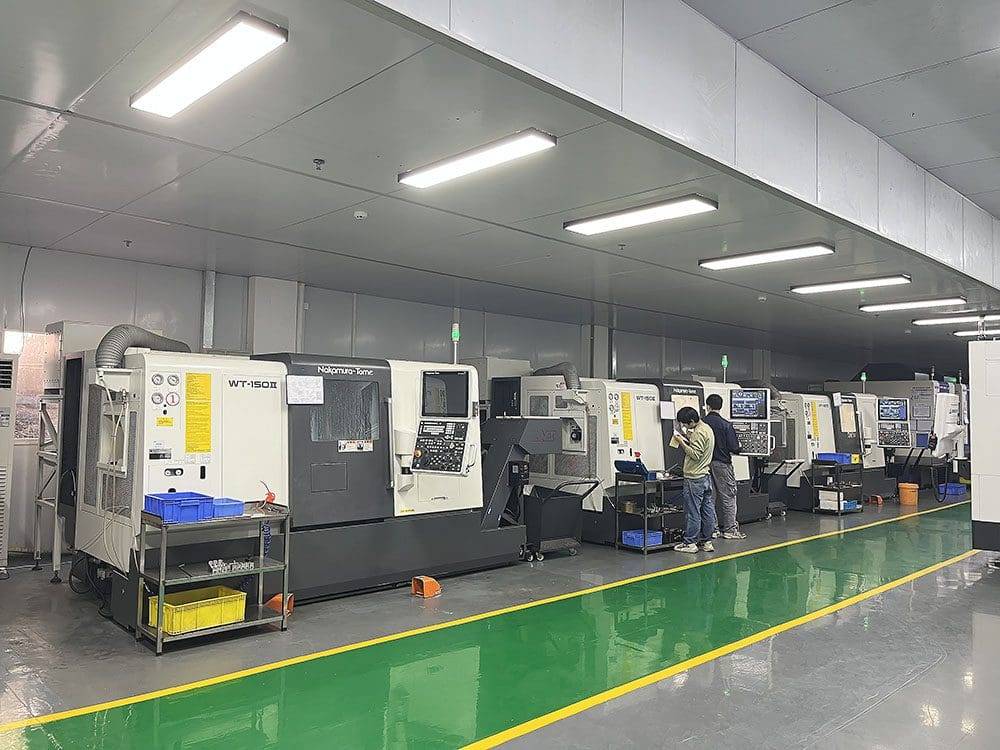
Real‑world case: A small workshop received an order for 50 identical brass nameplates. Using integrated CAD CAM CNC software, the designer created one CAD model, generated toolpaths once, and reused the same G‑code for all 50 plates. Total time from design to first finished part was under two hours, and every plate was identical within 0.05 mm tolerance.
03Why Use Integrated CAD CAM CNC Software Instead of Separate Tools?
For most users—from hobbyists to professional machine shops—integrated CAD CAM CNC software offers higher productivity and fewer errors.
04How to Choose the Right CAD CAM CNC Software (Without Brand Recommendations)
Follow these four criteria based on your actual needs:
1. Machine compatibility – Ensure the software includes a post‑processor for your specific CNC machine (or allows you to create/edit one). Without the correct post‑processor, the generated G‑code may crash the machine.
2. Part complexity – For simple 2.5D parts (pockets, contours, drilling), a basic 2.5D CAM module is sufficient. For complex 3D surfaces (molds, sculptures), you need full 3D or even 5‑axis CAM capabilities.
3. Learning curve and support – Look for software that offers built‑in tutorials, a comprehensive help manual, and an active user community. Free trials are essential to test before purchasing.
4. Budget – Prices range from free/open‑source options to professional packages costing thousands. Free software can handle many hobbyist and light professional tasks, but always verify that it supports your machine and part types.
05Common Mistakes to Avoid (Based on Real Workshop Experience)
Mistake 1: Skipping simulation. A small workshop once crashed a $2,000 spindle because the toolpath plunged directly into a clamp. Simulation would have shown the collision immediately.
Mistake 2: Using the wrong post‑processor. A user selected a “Haas” post for a Mach3 machine. The resulting G‑code had incompatible cycle formats, causing the machine to move erratically.
Mistake 3: Ignoring material and tool limits. Trying to cut steel with a router bit designed for wood leads to tool breakage and ruined parts. Always match tool type, feed rate, and spindle speed to your material.
06Actionable Conclusion – Your Next Steps
Core point to remember: CAD CAM CNC software is not magic. It is a logical sequence: Design → Toolpath → Machine. Master each step separately, then integrate them.
Immediate action plan:
1. Write down the exact model of your CNC machine and its controller (e.g., “Mach3,” “LinuxCNC,” “Fanuc 0i”).
2. Download a free trial of an integrated CAD CAM package (many offer 30‑day trials). Do not buy anything before testing.
3. Create a simple test part—a rectangular pocket with two holes—and run through the entire workflow: CAD model → CAM toolpaths → simulation → post‑process → machine a piece of scrap wood or foam.
4. Measure the result with calipers. If dimensions match your design within expected tolerance, you have successfully validated your software choice and workflow.
By following this structured approach, you will avoid the most common frustrations and quickly become productive with CAD CAM CNC software. Remember: every expert machinist started with the same basic steps. Now it is your turn.